armarx_localization_and_mapping HowTos
Table of Contents
How To
Record a new map
Preparation
- make sure the room is cleaned up
- if there is no map excisting yet, define an easy to detect world frame in the room (ideally a corner). If there is already an excisting map, use the coordinate system shown in the previous map
Recording of the map
- turn on the robot, start start all scenarios on the planning PC necessary for
- moving the robot
- mapping and localization
- ArViz
- start ArViz
- Either:
- If you want to create a new map for a known environment: ensure that the robot is localized in the existing map. In the PlatformUnitGui (position tab), you can read out the robot's current global pose. Note down those numbers.
- If you create a map for an unknown environment:
- define the world frame (some corner that can be identified in the occupancy grid)
- optional: rotate the robot so that its orientation matches the world frame sleected in the preparation
- Either (depending on the available scenarios - might differ between robots):
- legacy: in the scenario manager adapt the properties of
cathographer_mapping_and_localizationcomponentent. Set the propertymodetomapping(instead of localization) - preferred: If there are already two instances of the
cathographer_mapping_and_localizationcomponentent available in the scenario: disable thelocalization.cathographer_mapping_and_localizationcomponent and enablemapping.cathographer_mapping_and_localization.
- legacy: in the scenario manager adapt the properties of
- the newly recorded map will later be saved on the planning PC under
$WORKSPACENAME/h2t/PriorKnowledgeData/data/PriorKnowledgeData/maps/cartographerand named after the date and time of the recording. There is also a propertymapStorageSubDirwhich you can set relative to the aforementioned path. This will then be the default when starting the component (but can be changed in the RemoteGUI later on).
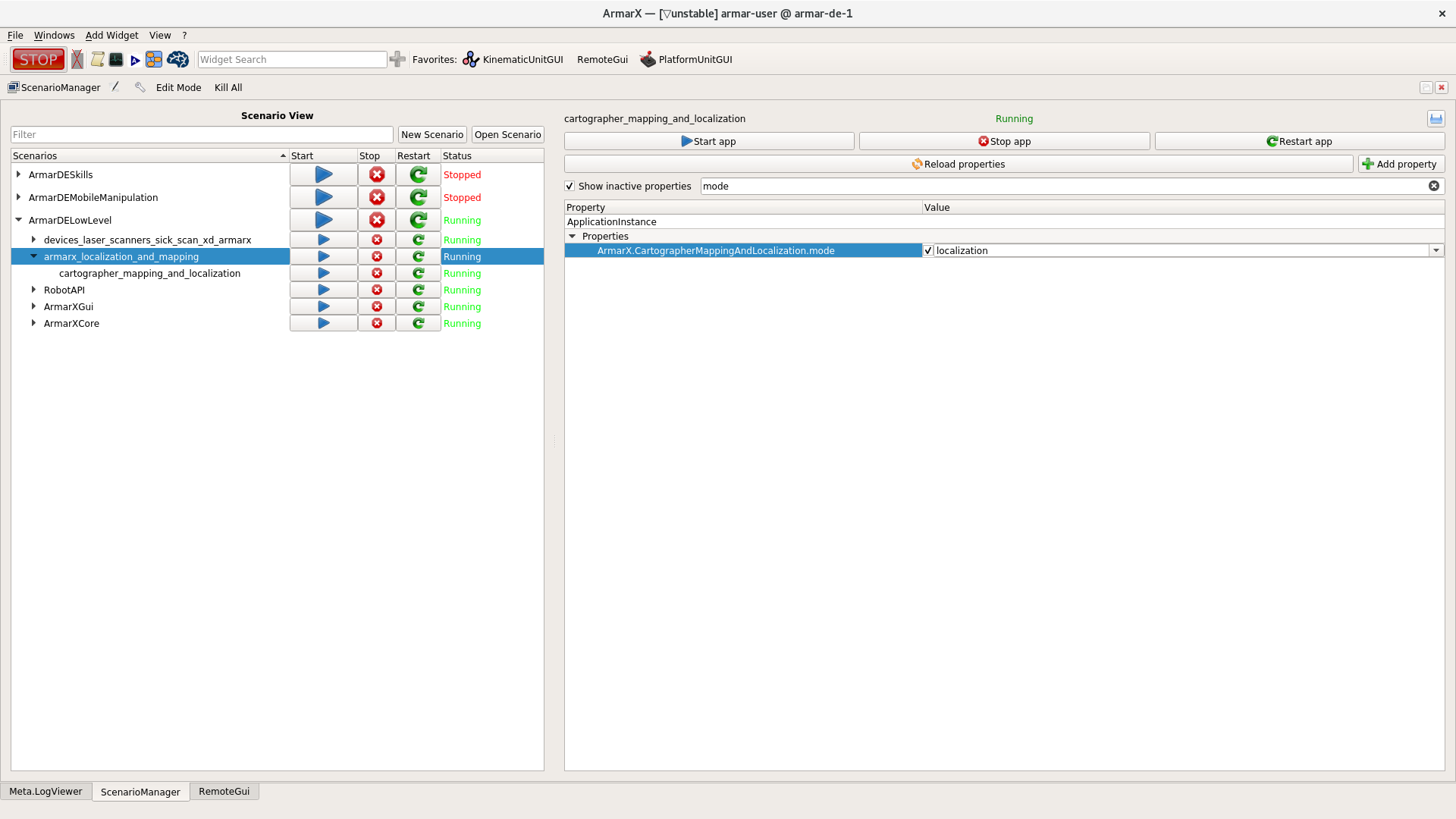
GUI: set property of mapping
- restart the scenario and check in log that everything is running correctly
- now ArViz visualization should not contain old map anymore, but laserscanner data
- you should see how the map is generated when moving the robot
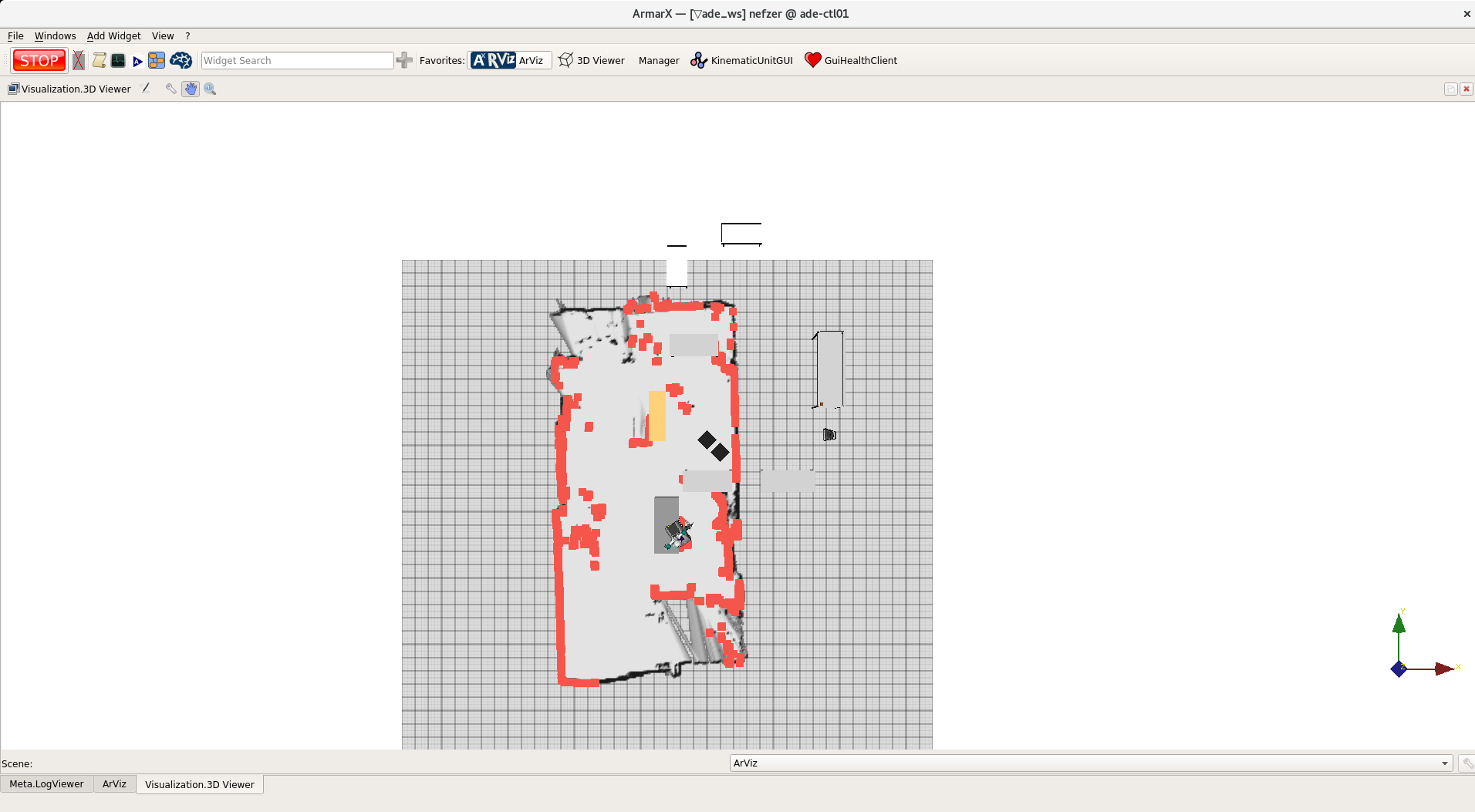
GUI: ArViz while generating map
- drive the robot through the room you want to record. Make sure that you visit all locations that the robot will have to reach autonomously. This will improve localization accuracy.
- when all parts of the room are covered, open the RemoteGUI widget in ArViz
- under the
CartographerMappingAndLocalizationtab press the buttonCreate map!to end the recording process and safe the map {-update description and image to new state-}. There you will also find the path where the map will be saved. Ensure that it is correct. Otherwise you will have to move the files on the disk.
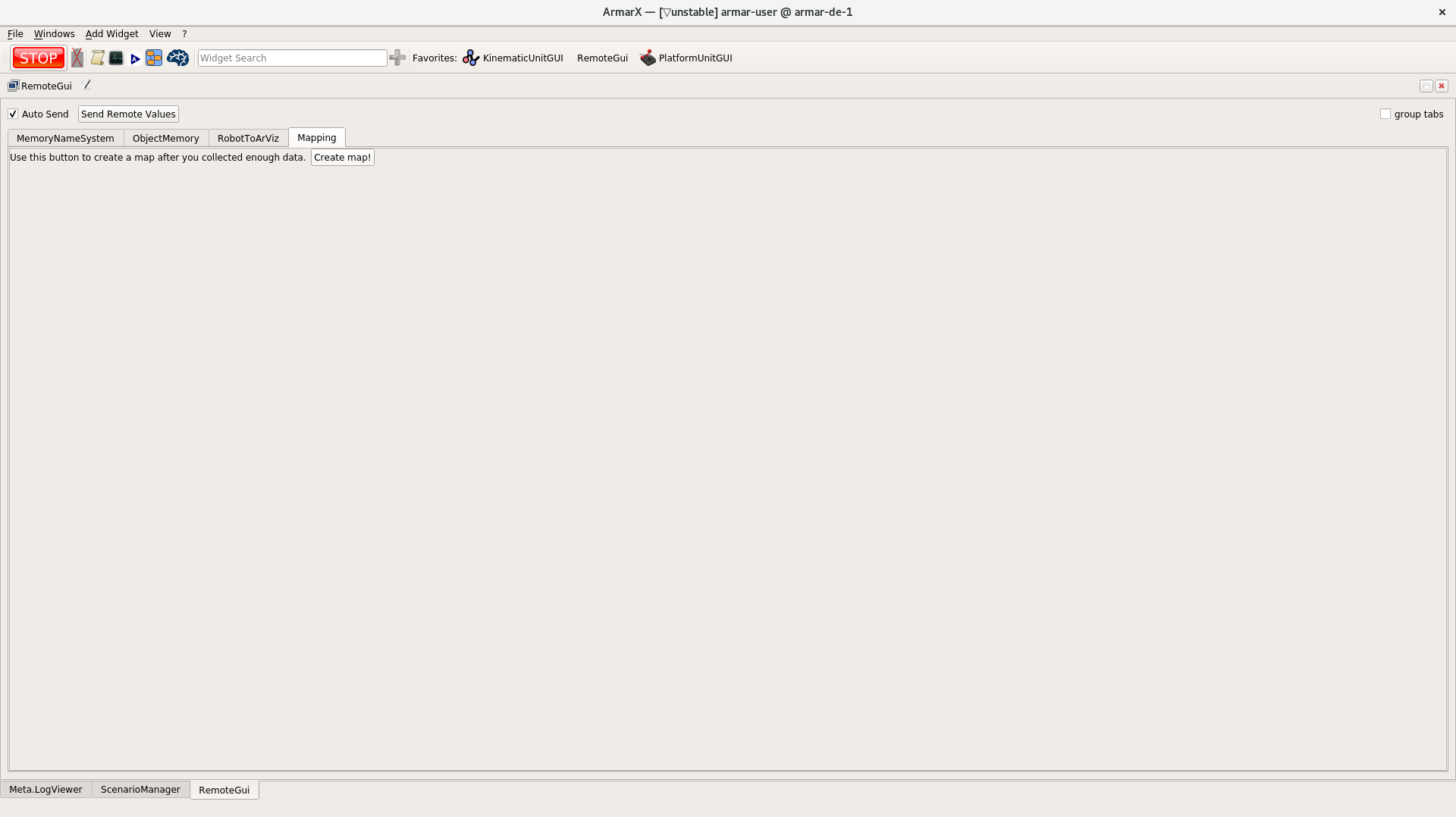
GUI: Create map using the remote GUI
Postprocessing
- Ensure that the new map files (
.cartoand .json file) are in the correct folder (i.e., the maps for R005 can be found under/h2t/PriorKnowledgeData/data/PriorKnowledgeData/maps/cartographer/50_19/R005). You can have a look at theCartographerMappingAndLocalization's log. If not: move the files before adding them to git. - A map is represented by two files having the same file name but different file endings. The
.cartofile is a binary file containing the map itself, while the.jsonfile registers the map relative to the world frame. - to use the new map, again modify the properties of the
localization.cathographer_mapping_and_localizationcomponent.- Legacy: First, make sure
modeis set back tolocalizationinstead ofmapping. - Adapt the
ArmarX.CartographerMappingAndLocalization.map_to_load.pathproperty so that the path matches the path to the newly recorded.cartofile
- Legacy: First, make sure
- take a look at the map (and the objects) in ArViz. Identify the world frame. If the world frame is not at the correct position (and the object positions do not match yet), open the new
.jsonfile andx,yandyawvalues so that the map matches the locations of the object models. Eventually, you have to update the location of the objects if they have been moved around. - then localize the robot using the laserscanner as usual